

Putting together a dedicated gaming space brings an immediate rush of excitement, whether you are assembling a desktop tower, organizing a console corner, or upgrading peripherals. Many players pour their entire budget into flashy graphics cards, high-refresh monitors, or glowing keyboards while overlooking ergonomics, airflow, and basic setup discipline. Those early oversights quickly turn long weekend sessions into frustrating battles with thermal throttling, tangled cables, and nagging wrist or back fatigue. Building a balanced, comfortable station requires looking beyond headline hardware specs.
A truly enjoyable gaming setup supports smooth performance, clear audio, and relaxed posture over hours of play. When newcomers rush assembly or buy mismatched components without checking compatibility, small bottlenecks undermine even the strongest hardware. Spotting these common setup blunders early saves money, prevents hardware wear, and keeps every session focused on the game.
Spending Everything on Hardware While Ignoring Ergonomics
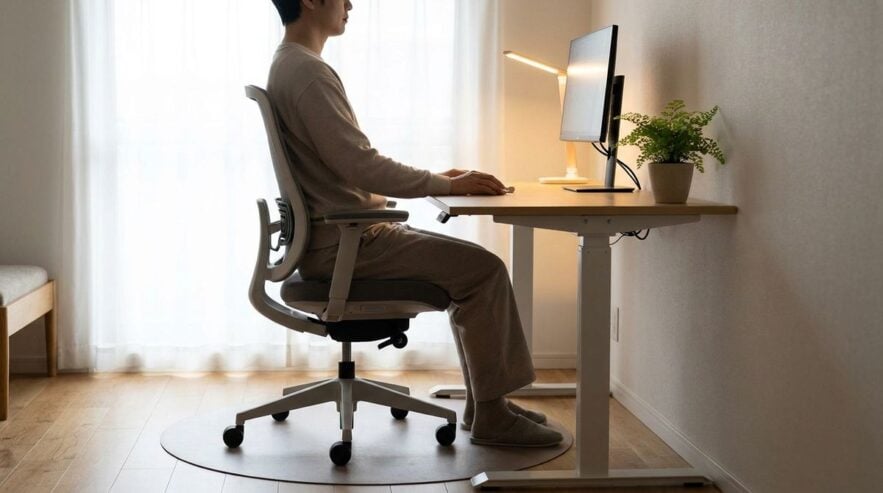
One of the most widespread mistakes in gaming setups involves pouring every available dollar into tower components while sitting on a stiff dining chair at a cramped desk. Players obsess over frame rates and pixel response times yet ignore neck strain, hunched shoulders, and sore wrists caused by poor seating height. Physical discomfort ruins concentration far faster than a slightly lower graphics setting ever could. Treating a supportive chair and properly sized desk as core equipment pays off every single evening.
Desk depth plays an equally critical role that first-time builders frequently overlook. Placing a massive monitor on a shallow tabletop forces your eyes inches away from the screen, causing rapid eye fatigue and awkward head movements during fast-paced matches. Readers may also want to visit Arab Tek. Positioning the top edge of the display near eye level keeps your neck neutral during extended campaigns.
Keyboard and mouse placement also suffers when narrow desks leave zero room for sweeping arm movements. Cramming a mousepad against a tower case forces unnatural wrist angles that lead to soreness over time. Choosing a clean, wide surface gives your arms freedom to rest naturally while keeping essential controls within easy reach.
Overlooking Airflow and Dust Management Inside the Case
Sleek glass panels and tightly packed components look impressive on a desk, yet poor airflow planning turns a quiet machine into a noisy space heater. Beginners often install all their case fans facing the exact same direction, creating turbulent pockets of trapped hot air rather than a smooth front-to-back breeze. Without balanced intake and exhaust paths, internal temperatures climb steadily and force processors to slow themselves down to stay safe. Mapping airflow arrows on every fan frame before tightening screws prevents backward installations.
Placing a desktop tower directly on plush bedroom carpet creates another major cooling hazard that catches newcomers off guard. Thick carpet fibers choke bottom power supply vents and pull lint straight into cooling fins within weeks. You can also visit Free-pc-guides.com for more reading. Resting the case on a hard wooden board or low side table immediately opens up vital bottom ventilation.
Skipping routine dust filter cleaning allows fine lint to blanket radiator fins and fan blades silently over several months. Quick monthly wipe-downs with a microfiber cloth and short bursts of compressed air maintain factory cooling efficiency without needing full teardowns. Clean airflow keeps fans quiet and extends hardware longevity.
Buying Mismatched Parts Without Checking Clearance
Excitement during online shopping often leads builders to order oversized graphics cards, tall air coolers, and compact cases without checking physical millimeter dimensions. Discovering that a massive heatsink blocks the side glass panel or collides with tall memory sticks halts assembly right in the middle of the living room floor. Measuring internal case clearances against component specifications before clicking checkout avoids frustrating return shipping delays.
Power supply selection suffers from similar guesswork when builders buy units with just barely enough wattage or non-modular cable bundles. Cramming dozens of unused, stiff power cables behind a tight motherboard tray makes closing the back panel nearly impossible and blocks airflow channels. For a related read on this site, see Choosing Reliable Home Services to Lighten a Busy. Modular power supplies let you attach only the exact cables your drives and graphics card require.
Monitor and cable mismatches also trip up players expecting crisp, smooth motion. Plugging a high-refresh display into a graphics card using an outdated cable type caps frame delivery far below what the screen can actually display. Verifying that your display cable supports your monitor’s full resolution and refresh rate unlocks the smooth visuals you paid for.
Neglecting Cable Management and Surge Protection
Throwing power strips, router bricks, and audio wires into a tangled pile beneath the desk creates more than just an eyesore. Loose cables snag feet during intense moments, yank headsets off hooks, and trap thick layers of dust around warm power adapters. Routing cords neatly through under-desk trays and reusable hook-and-loop straps keeps walkways clear and makes swapping peripherals effortless later.
Plugging expensive electronics directly into bare wall outlets or flimsy extension cords leaves sensitive circuits vulnerable to sudden voltage spikes during storms. A quality surge protector with spaced outlets protects towers, monitors, and consoles from electrical surges while keeping bulky power bricks organized. Labeling each plug near the strip saves you from crawling under the desk and unplugging the wrong device in the dark.
Configuring Audio and Display Settings Carelessly
Many players unbox a crisp new monitor or studio headset and immediately launch a game without adjusting factory defaults. Out-of-the-box displays often ship locked at standard low refresh rates until changed inside operating system display menus. Similarly, extreme brightness and oversaturated color modes strain eyes quickly in dimly lit rooms. Spending ten minutes calibrating brightness, contrast, and refresh rates transforms visual clarity immediately.
Audio balance suffers when players crank master volume to drown out room noise instead of using well-fitted closed-back headphones or balanced desktop speakers. Loud, muddy bass masks subtle directional cues while tiring out your ears after a single match. Adjusting in-game dynamic range and keeping moderate volume levels protects hearing while sharpening spatial awareness.
Creating a Setup Built to Last
Building a rewarding gaming station relies on balance, patience, and attention to everyday comfort rather than chasing the flashiest specs alone. By checking physical clearances before ordering, prioritizing ergonomic seating, planning clean airflow paths, and organizing cables properly, players create spaces that perform reliably year after year. Thoughtful preparation turns any corner into an inviting, trouble-free retreat.