

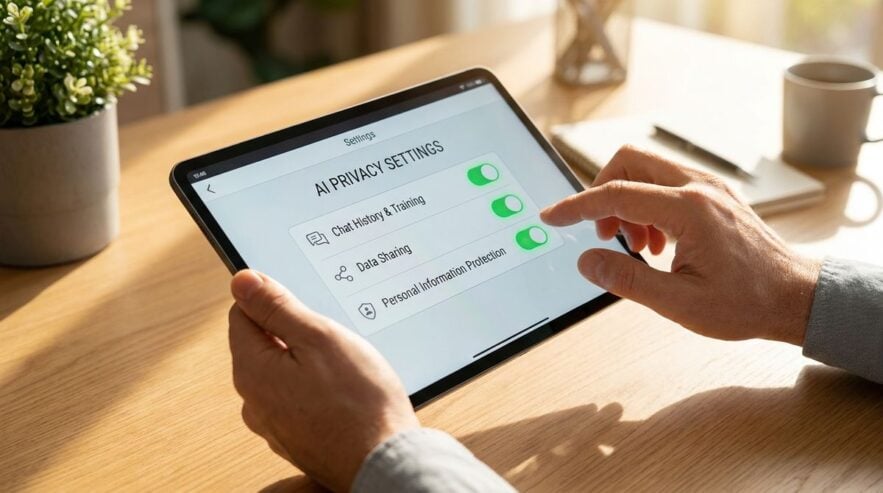
A family phone often collects more location detail than anyone intended. Map apps, photo libraries, and social accounts may all keep a trail of places visited, sometimes without the owner noticing. Reducing that trail is a sensible privacy step, but it can also disrupt the navigation features that people rely on every day. This article shows how to adjust location history on a shared family phone so that privacy improves and directions still work when needed.
The settings named here change over time, and wording differs between phone systems and apps. Treat the steps as a general guide, then check the current menus and the official help pages for each service. Make one change at a time, and test the result before moving on.
Find Each Setting in the Account Menu
Location history is often stored in several places. The phone itself may have a system-wide location switch, while each app keeps its own permission. The account that signs into the map service may also have a separate timeline setting. Make a list of every place where the phone or the account stores location, and tick each one off as you review it.
Readers may also want to visit The Candid RD. Read them before making changes, so you know which switch controls what. Keep notes on the menu paths you find, since updates sometimes move them to a new location.
Decide Which Apps Keep Location
Not every app needs constant access. A map app may need location while it is open, while a shopping app rarely needs it at all. Set each app to allow location only while in use, unless there is a clear reason for continuous tracking. Ask every family member which apps they actually use with directions, so the settings match real habits.
You can also visit Theleadbelly.com for more reading. Use their checklists as a starting point, then adapt them to the apps on your phone. A short conversation at the dinner table often reveals settings that nobody remembered turning on.
Check Photo Metadata Before Sharing
Photos are a common source of hidden location data. Many cameras attach coordinates to each picture, and those details can travel when a photo is sent to a group chat or uploaded to a public page. Turn off location tags in the camera settings, or remove them from existing images before sharing.
For a related read on this site, see One Navy Blazer, Five Work Outfits. Test the change with one picture sent to a trusted person, then confirm that the location is no longer attached. Repeat the check whenever a new phone or camera is added to the household.
Review Settings Once a Season
Privacy settings drift. A new app is installed, a phone is upgraded, or an update resets a switch that was previously turned off. Set a reminder to review location history every season, and walk through the account menu with the whole family. A short review keeps the setup accurate without turning it into a chore.
During each review, check that directions still work for the places that matter, such as school, work, and the family doctor’s office. If a map feature stops working, look for the app’s permission setting before concluding that the whole system is broken.
Reviewing Location Sharing Between Family Members
Some families share location with each other through a messaging app or a family group. That feature can be useful on a busy night, but it should be a choice rather than a default. Review each member’s list of people who can see their location, and remove any entry that nobody remembers adding.

Explain the difference between a live location and a stored history. A live share ends when the person turns it off, while a history may keep a record of past trips. Teach each family member how to check both settings, and make the review a shared habit instead of a rule imposed from one device.
Remind teenagers and older relatives that they can ask to change the setup at any time.
Set a calendar reminder for each review, and treat it like a short family meeting. Ask each person whether a setting still matches their daily life, and note any change in a shared document. A few minutes around the kitchen table can prevent a surprise months later.
Old phones often keep settings that new phones do not show, so review the older device before passing it on to a younger relative.
Privacy Settings That Stay Put
A family phone can protect location privacy without losing the convenience of maps. Find each setting, decide which apps truly need location, remove hidden coordinates from photos, and review the choices each season. With that routine, the phone shares only what the family intends to share.